
Capture with a note
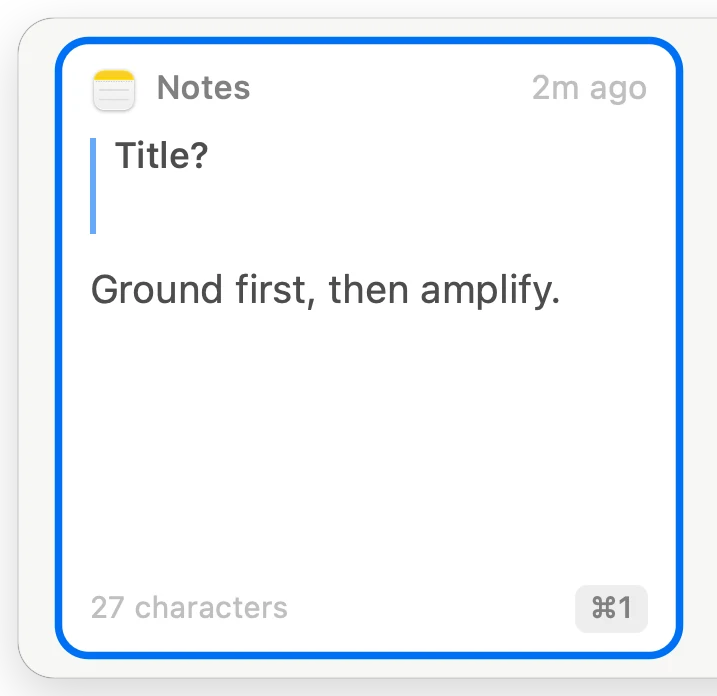
Highlight text in any app, or drag over part of the screen, and a small panel asks what caught your attention. Each capture keeps where it came from: the app, the window and, when available, the web address.


A Mac companion for Subtextual
Catch what you read, and why it mattered. A small menu-bar app that gathers material while you read, with a note on why each piece matters, ready for when you write.
Coming soon to the Mac App Store
Free for now · Requires macOS 15 or later. · All downloads
Subtextual is where writing happens. Capture is how material gets there.
Highlight a sentence or drag over part of the screen, and add a few words about why it caught your attention.
Every capture waits in Capture’s Captures view with your note and where it came from, ready to search, copy or drag into your draft.
Capture 1.1 will send captures to Subtextual for Mac, where they land in Pretext. When you place one, the words go on the page and your note becomes a Context note beside them.
Capture is useful even if you never open Subtextual.
Highlight text in any app, or drag over part of the screen, and a small panel asks what caught your attention. Each capture keeps where it came from: the app, the window and, when available, the web address.
Drag over a picture, a video frame, a slide or a PDF that won’t let you select, and its text is on your clipboard. Paragraphs are joined back up. Collect several grabs and paste them at once if you like. QR codes work too.

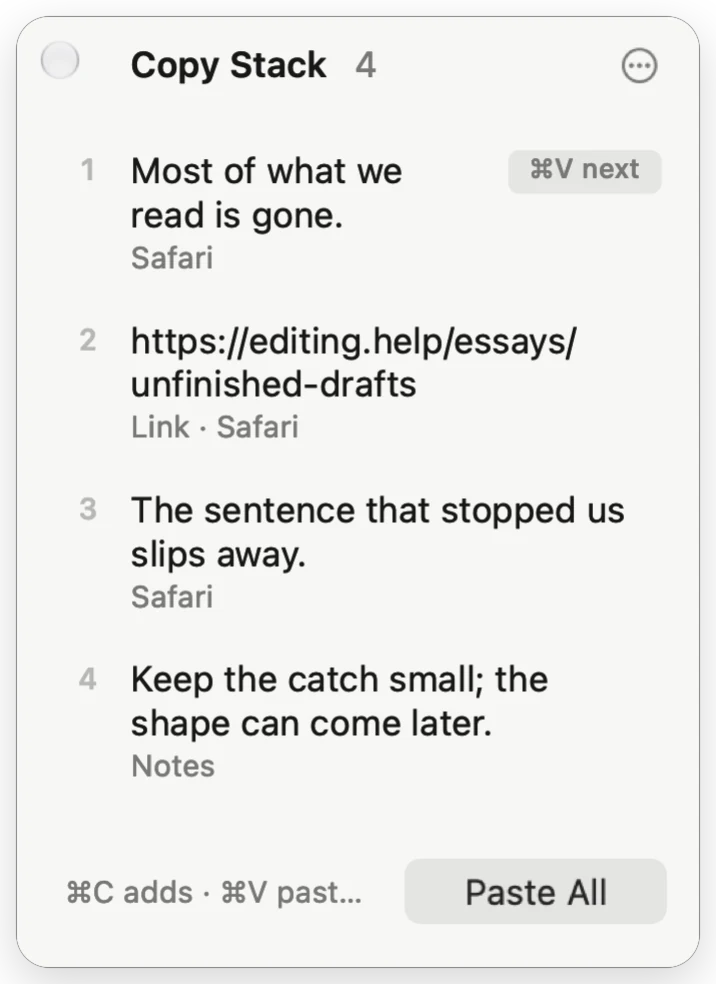
Copy several things, then each ⌘V pastes the next one. Or paste them all in order, images included.
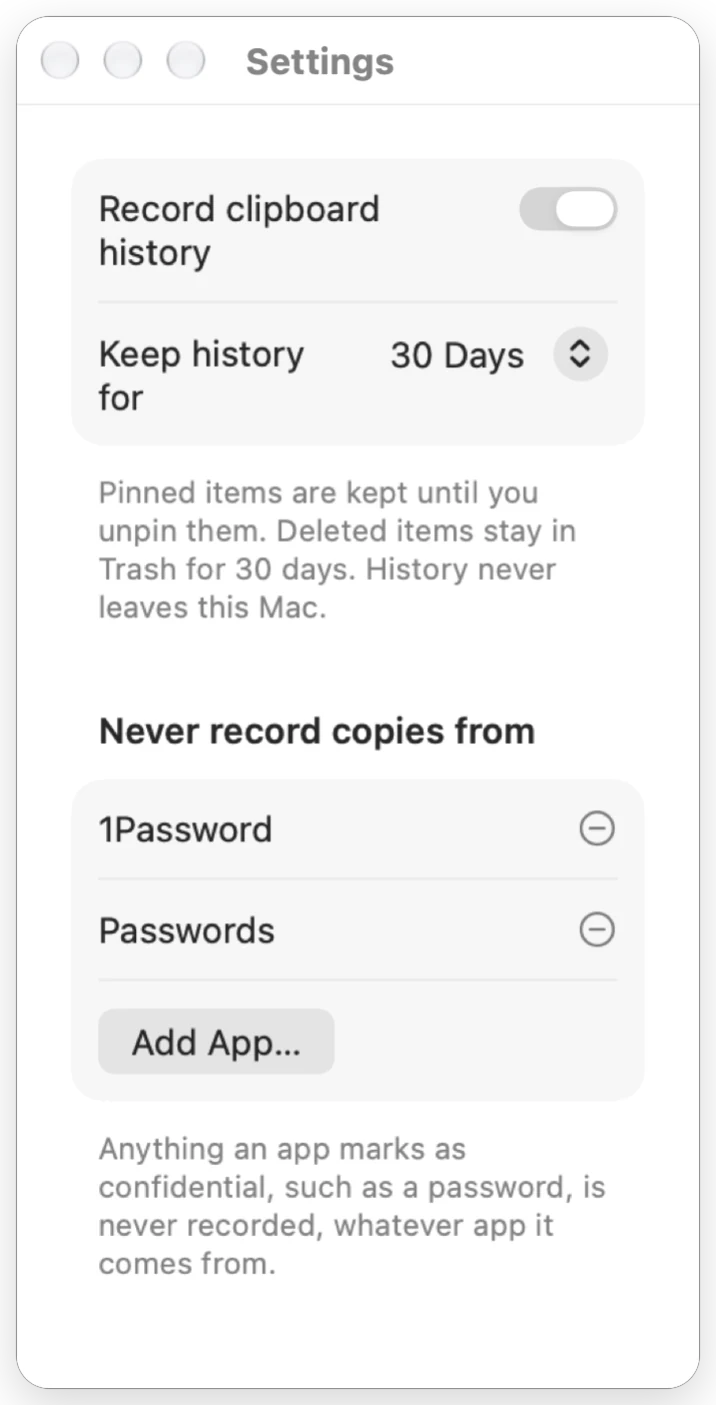
Search everything you’ve copied, including the words inside images. Pin keepers to boards and paste with ⌘1–9. History is off until you turn it on.

There’s also a Captures view to search, paste and drag every capture with its note, and you can save captures as Markdown files in a folder you choose, for Obsidian, iA Writer or any notes app.
| Capture highlighted text | ⌃⌥S |
|---|---|
| Capture a screen area | ⌃⌥A |
| Grab text | ⇧⌘2 |
| Copy stack | ⇧⌘C |
| Clipboard history | ⇧⌘V |
All of them can be changed in Settings → Shortcuts.
Yes, for now.
No. Capture works on its own. Version 1.1 will also send captures straight to Subtextual for Mac.
Accessibility lets it copy what you highlight and paste for you. Input Monitoring lets it notice ⌘C and ⌘V so the copy stack can line up the next item; it doesn’t record what you type. Screen Recording lets it capture only the screen area you select. macOS asks the first time each is needed.
It’s a macOS privacy setting. Choose Allow for Subtextual Capture so clipboard history doesn’t ask on every copy.
No. Text in images is read on your Mac by Apple’s built-in text recognition. Nothing is sent to an AI service.
Yes, in Settings → Shortcuts.
Questions or problems? Email info@editing.help.