


A short film. A page of writing turns into a lit stack: beneath the paragraph “Rush to polish, and the surface hardens before the shape inside has settled”, three sheets slide out one at a time and are read up close: a Context note on “hardens” (“Is ‘hardens’ too strong? Maybe ‘sets’, like plaster.”), a subtext thought (“Example from last week: the grant summary read well and meant nothing.”), and the AI’s question beneath that thought (“What did you actually believe? Write that sentence first.”). The camera pulls back to show the stack, then returns to the page, unchanged.
Everything in Subtextual.
Room beneath every paragraph, and everything that comes with it. Free, in your browser, no account needed.
Thinking gets scattered.
Notes here, an outline there, an AI chat elsewhere, the draft somewhere else. The thread gets lost.
Subtextual keeps it in one document: the draft on top, and beneath it your thinking, your editor’s notes and the AI’s replies.

Text and Subtext.
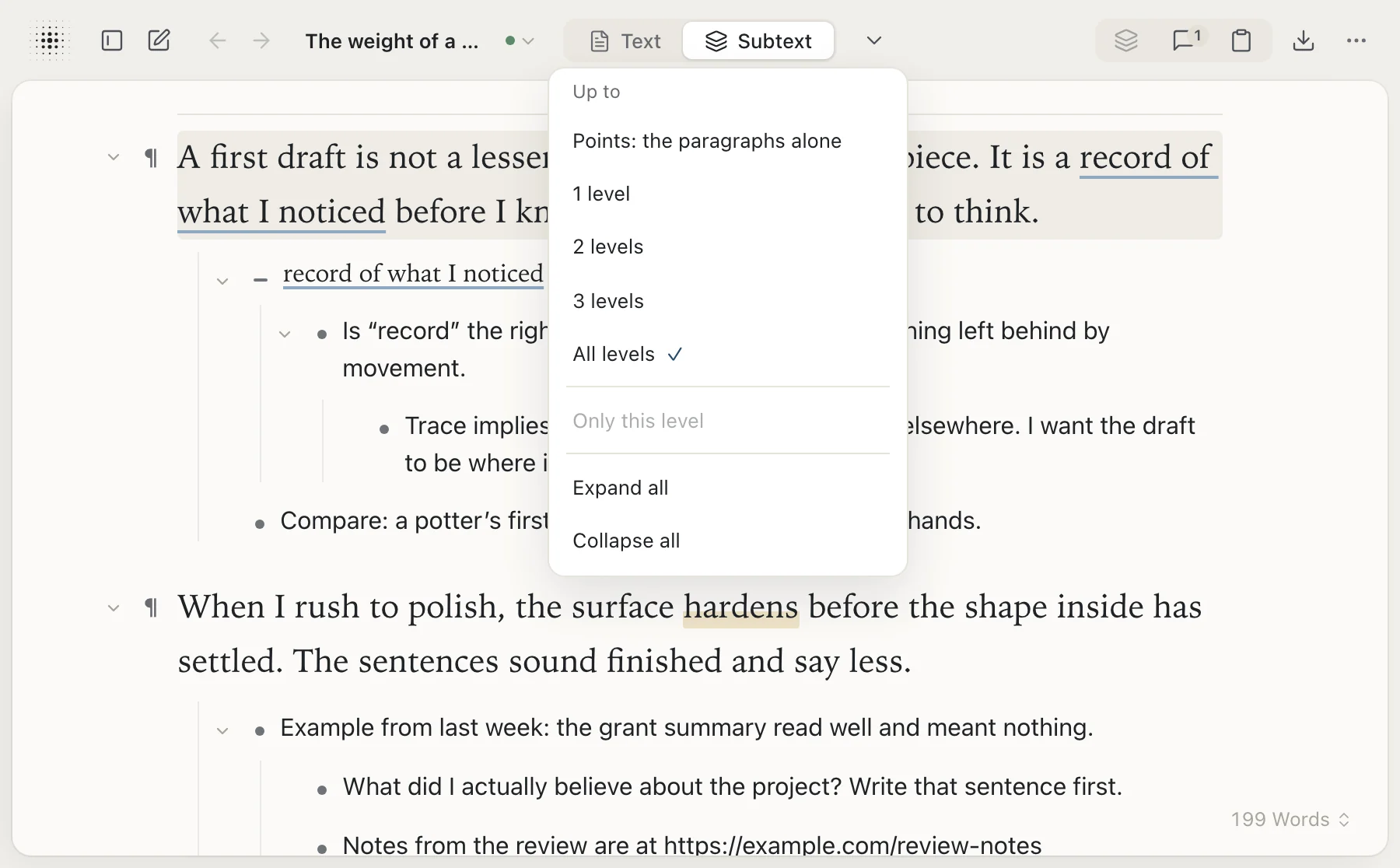
Text shows only your draft. Subtext shows the whole document as one tree, with everything beneath each paragraph, as deep as you want to look: the paragraphs alone, a level or two down, or all of it. Hang a thought from exact words, and they’re underlined on the page.
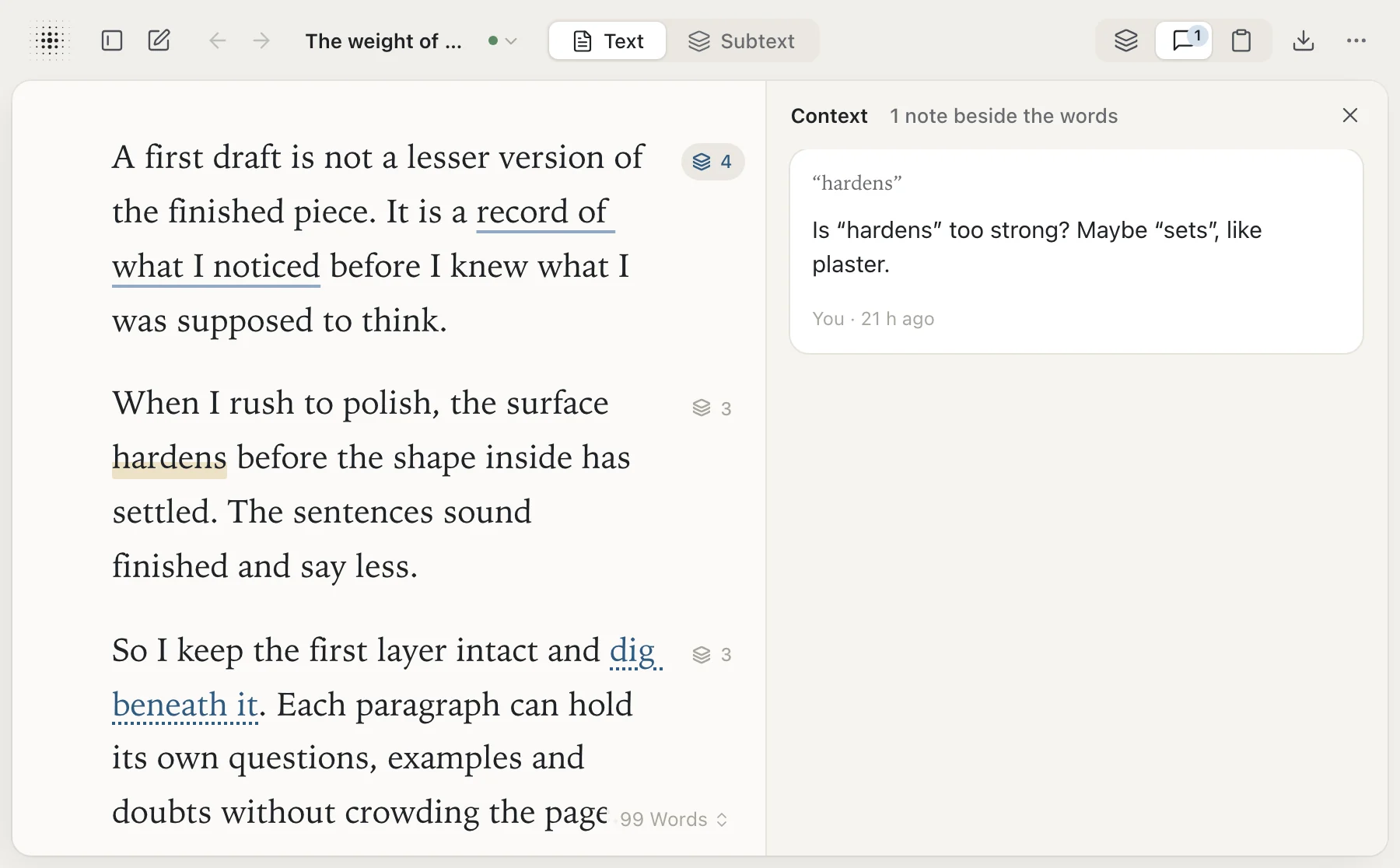
Notes on the exact words.
Select a few words and leave a Context note beside them, like a note in a margin. It never touches the page.
Ask beneath any thought.
AI works in the subtext, never on the page.
Write a question as a thought beneath any paragraph, then choose Ask the AI from its menu. The answer arrives beneath it, on a hollow bullet, so you can always tell it from yours.
Subtextual AI, $5 a month. Or use your own key, and pay your provider directly. See pricing

Write hot. Edit cold.
Write hot is for drafting: the page goes quiet, and only what you’re writing stays lit. Type // and a note, anywhere, and it waits beneath the paragraph while you keep going. Edit cold sets the draft out fresh, as if printed, so you read it and leave thoughts first, then start editing. Both are in the ⋯ menu, on a phone too.


What you wrote, and what you dug into.
The Timeline shows what you wrote, day by day, and can replay a document as it grew: its paragraphs, and the subtext beneath them, in the order they arrived. The Index gathers the words you chose to dig beneath, A to Z, across your documents, each with the thoughts that hang from it.


Every draft you might want back.
Versions are kept as you write, and always before anything replaces your writing. Open History to see any version beside the document as it is now, copy words from it, or restore it. Name the versions that matter; a named version stays until you remove it. Versions are kept on the device you write on.

Sync the documents you choose.
Sign in to sync a document to your other devices, one document at a time; the rest stay where you wrote them. If you want it, Private sync encrypts synced documents on your device, with a passphrase only you know, before they’re uploaded.
Private sync is off by default. While it’s on, you can’t start sharing a page. Pages you already share can stay shared as plain copies, which the server can read. What sync and Private sync cover

Your editor writes beneath, too.
Invite an editor, a teacher or a writing partner to a page. Their notes arrive beneath the paragraphs they’re about, with their name on them. Share the whole page or only the paragraphs you pick, for writing beneath or for reading only. Only you write the page.

Bring it in. Take it with you.
Import Word, Markdown and plain-text files. Export any document as Word, Markdown or PDF, or every document at once in one .zip. A project file keeps the subtext and notes too, ready to import later. Nothing is locked in.

Subtextual for Mac.
The same writing page, as a Mac app. Your documents are saved as files in a folder you choose. The download from editing.help adds sign-in, to sync and share, and checks for updates, which install when you choose. Free, for macOS 14 or later, on Apple silicon and Intel.
Coming to the Mac App Store. Download for Mac


Subtextual Capture.
A small menu-bar app for catching what you read: highlight a sentence or drag over part of the screen, and add a note about why it caught your attention. Mac only. Coming soon to the Mac App Store.
Coming in 1.1: straight to Subtextual. Capture 1.1 will send captures to Subtextual for Mac, where they land in Pretext. When you place one, the words go on the page and your note becomes a Context note beside them.
